 Digital detox
How to Block Shopee
A marketplace with coins, games and flash sales. The shopping is only part of why it gets opened.
How Offimo pauses Shopee
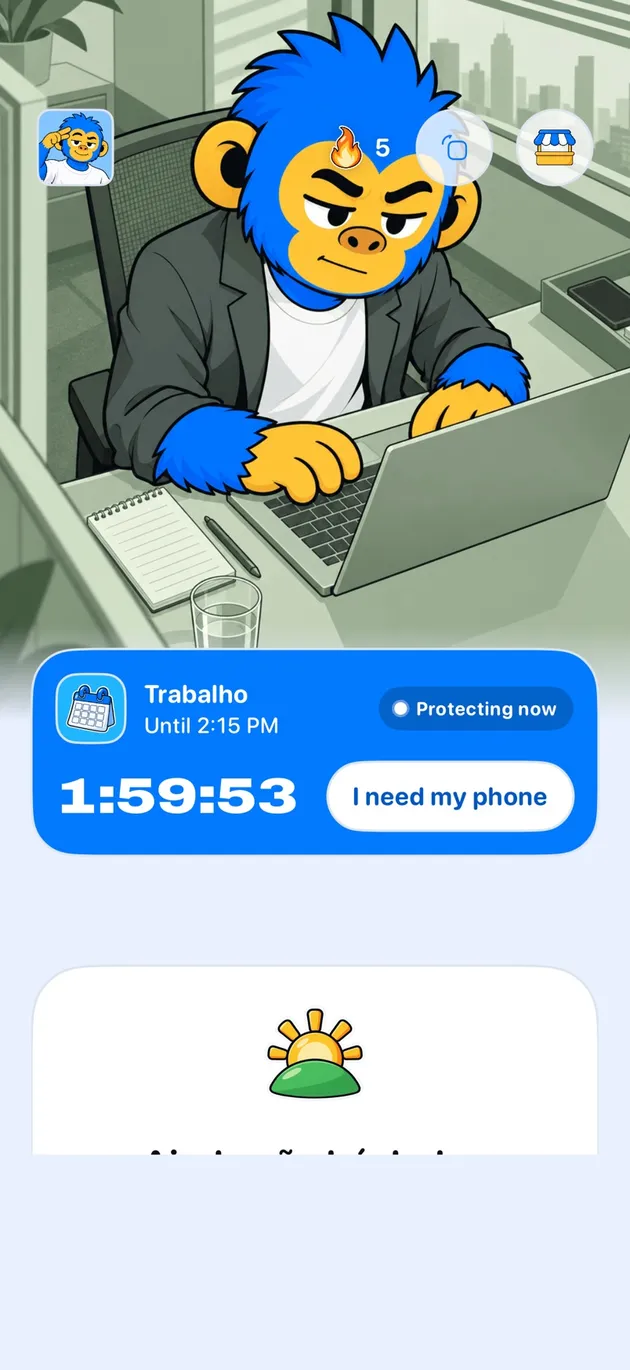
Offimo puts a short pause between the tap and Shopee, every time you open it. You can still go in, but opening it stops being a reflex and becomes a decision.
On the simple pause, if you still want in, you go in. For the days you have already decided not to negotiate, Commitment Mode makes the block firmer for the period you choose, and Emergency Unlock opens everything for 30 minutes if something real comes up.
Setting Up Shopee Blocking in Offimo
- 1
Download and Install Offimo
Get Offimo from the App Store and complete the short onboarding flow, granting the permissions it needs to intercept app launches.
- 2
Add Shopee to Your Protected Apps
In Offimo's app selection screen, choose Shopee from your list of installed apps. You can protect other apps at the same time if you want.
- 3
Customize Your Pause Settings
Set your preferred pause length (30 seconds is a good place to start) and choose the reflection prompt you'll see before Shopee opens. Adjust these anytime.
- 4
Use Your Phone as Normal
Keep browsing as you always have. The next time you tap Shopee, Offimo will show the pause first, then let you continue on if you decide you still want to.
Tips for Success
When Shopee usually opens
To collect the day's coins, then the flash sales on the same screen.
What to protect and what to leave reachable
If you want to buy something specific, go in after the pause. The openings only to check coins and deals are the ones the pause catches.
See also
Read more on this topic
Digital detox Digital detox
 Wellbeing