 Screen time
How to Block YouTube
Break free from endless video watching with Offimo
Short answer
To block YouTube on iPhone without deleting it, set an App Limit in Screen Time (free and built in) and lock it with a Screen Time passcode. If you want to keep YouTube but stop opening it on reflex, an app blocker like Offimo puts a short pause before it opens. Steps for both are below.
How to block YouTube with iPhone settings (free)
- 1
Set an App Limit
Open Settings → Screen Time → App Limits → Add Limit. Pick YouTube, set the time to 1 minute and tap Add. If Screen Time is off, turn on App & Website Activity first.
- 2
Lock it with a passcode
Without a passcode, the limit screen offers Ignore Limit and one tap gets you back in. In Screen Time, choose Lock Screen Time Settings and set a code you won't type on impulse, or ask someone else to set it.
- 3
Or require Face ID to open it
On iOS 18 or later, touch and hold the YouTube icon and choose Require Face ID. It won't stop you, but it turns an automatic tap into a deliberate unlock. Hide and Require Face ID also takes it off the Home Screen.
Where the built-in tools fall short
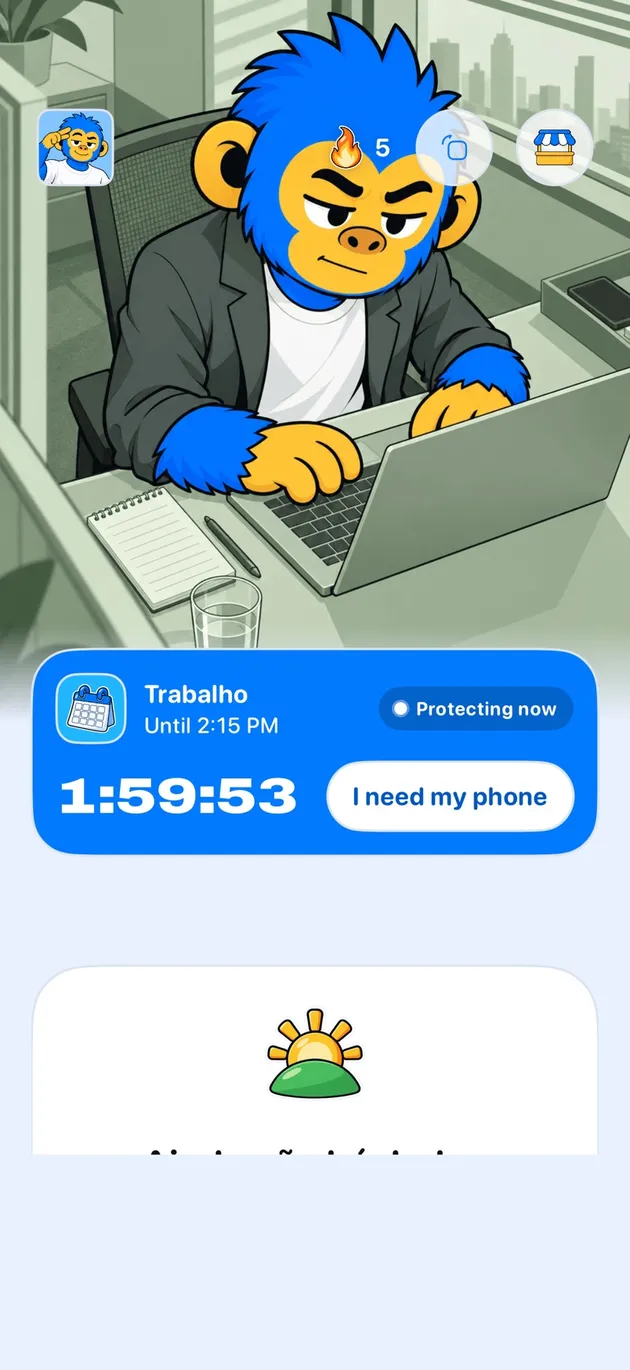
App Limits are all or nothing: YouTube either opens freely or stays shut until midnight, and the passcode usually ends up typed by the same person it was meant to stop. Offimo sits in between. It shows a short pause before YouTube opens, every time, so opening it becomes a decision instead of a reflex.
The Real Cost of YouTube
- 74 minutes per dayAverage time on YouTube
- 19 full days per yearThat's nearly
- 81%Watch longer than intended
Source: Nielsen Media Research (2024)
Why YouTube Is So Hard to Quit
YouTube's recommendation algorithm is arguably the most sophisticated and addictive on the internet. It learns your preferences with every video you watch, every search you make, and every second you spend watching, then serves you an endless stream of content calibrated to keep you watching "just one more video." The autoplay feature ensures you never have to make a decision. The next video starts automatically before you can think about stopping.
Whether you're watching educational content, entertainment, or falling into rabbit holes of conspiracy theories and drama, YouTube creates a sense of never being done. There's always something more interesting, more engaging, more urgent to watch. This makes it nearly impossible to use YouTube for a specific purpose without getting derailed by recommendations and spending far more time than you intended.
How Offimo Helps You Regain Control
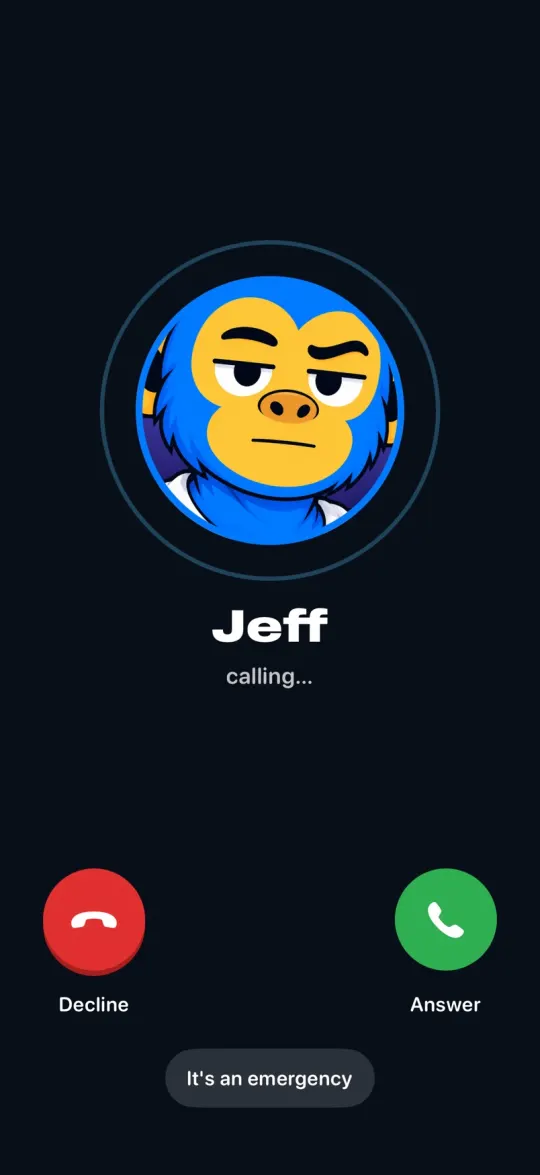
Offimo interrupts the automatic pattern of opening YouTube without thinking. Instead of immediately landing on your personalized home feed with dozens of tempting thumbnails, you encounter a pause. A moment of friction that lets your conscious mind catch up with your muscle memory. This brief interruption is surprisingly powerful because it breaks the autopilot mode that leads to hours of unintended watching.
During the pause, you can ask yourself whether you actually want to watch YouTube right now or if you're just procrastinating, avoiding work, or seeking distraction from uncomfortable feelings. This moment of self-awareness often reveals that you don't really want to watch videos. You're just following a habit. When you do decide to proceed, you'll use YouTube more intentionally, watching what you came for and then leaving rather than spiraling into endless recommendations.
Offimo doesn't eliminate YouTube from your life; it eliminates mindless YouTube consumption. You still have access for learning, entertainment, or whatever you value about the platform, but you're choosing to engage rather than being pulled in against your better judgment.
Setting Up YouTube Blocking in Offimo
- 1
Download and install Offimo from the App Store on your iOS device
- 2
Open the app and complete the initial setup process to understand how pauses work and why they're effective
- 3
Navigate to the app selection interface and find YouTube in the list of blockable applications
- 4
Turn on the pause feature for YouTube and select your preferred pause duration (45-60 seconds works well for most people)
- 5
Grant the required system permissions so Offimo can monitor when you open YouTube and enforce the pause effectively
What to Expect After Setup
In the beginning, you'll be surprised by how often you unconsciously reach for YouTube. Every pause will make you aware of this automatic behavior, which is the first step toward changing it. Some attempts to open YouTube will feel legitimate, while others will make you realize you were just procrastinating or seeking distraction.
After a week of using Offimo, most users report dramatic reductions in YouTube screen time. Often 50% or more. The pauses prevent the mindless "just one more video" spiral that used to consume entire evenings. You'll find yourself watching with purpose: looking up a tutorial, watching a specific creator, or enjoying chosen entertainment, then closing the app instead of watching for hours.
Long-term benefits include better sleep (from not watching videos late at night), improved productivity (from not procrastinating with YouTube), and a stronger sense of control over your time and attention. The hours you reclaim can be invested in hobbies, relationships, projects, or simply rest. All of which are more satisfying than another YouTube binge.
Tips for Success
Start with a moderate pause (30-45 seconds) and gradually extend it as you become more comfortable with the interruption and more aware of your habits
Use the pause moment to ask: "What specific video or information am I looking for?" If you can't answer clearly, you probably don't need to open YouTube right now
Complement Offimo with other YouTube management strategies: turn off autoplay, disable notifications, unsubscribe from channels that don't add value, and avoid the home page by searching directly for what you want
Frequently asked questions
Can I block YouTube without deleting it?
Yes. An App Limit in Screen Time keeps YouTube installed but closes it once the time you set runs out. Offimo also keeps it installed and puts a pause in front of it. Your account, messages and settings stay as they are.
Can I block YouTube only at certain times?
Yes. Screen Time's Downtime blocks every app outside your allowed list during the hours you schedule. Offimo lets you set fixed blocks for the hours you choose, so YouTube can stay closed during work or late at night.
Does blocking the YouTube app also block the website?
No. A limit on the app does not cover Safari. When you pick apps for the App Limit, scroll to Websites and add YouTube's address to the same limit.
See also
Read more on this topic
Screen time Digital detox
 ADHD