 ADHD
ADHD- Screen time
- 3 min read
How to block apps on iPhone: 4 methods compared
Screen Time, Focus, Shortcuts or a blocking app: what each one closes on an iPhone, where it fails and the order worth setting them up in.
By Offimo Team · updated October 22, 2026
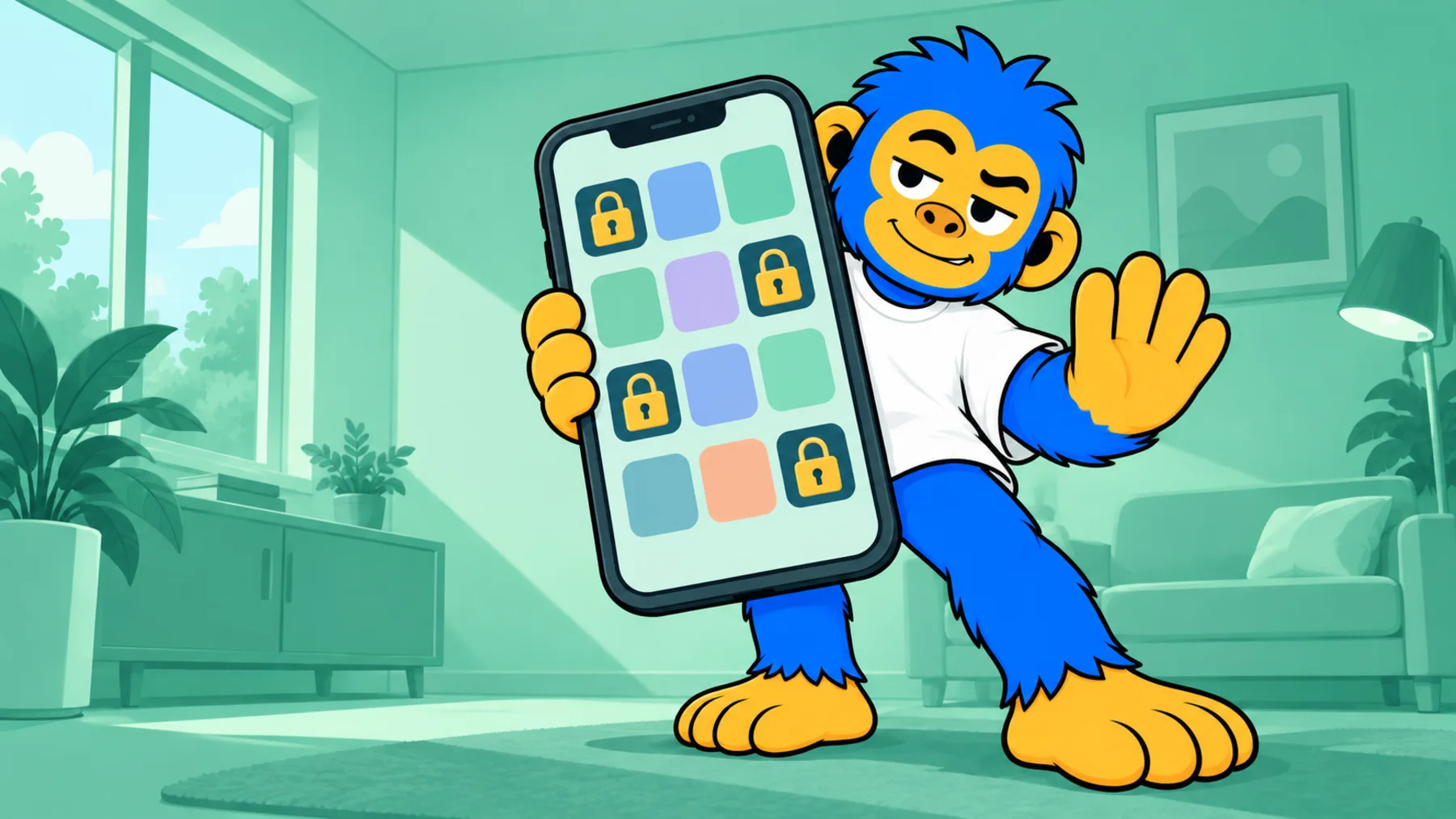
The iPhone has four ways to limit an app, and each one closes a different gap: Screen Time limits minutes, Focus cuts interruptions, Shortcuts reacts to the app opening, and a blocking app puts a pause or a barrier at the door. If you only do one thing today, turn off content notifications on your social apps, then set a Screen Time passcode that differs from your device passcode.
What each method closes and what it leaves open
| Method | What it closes | What it leaves open |
|---|---|---|
| Screen Time | Use past the daily limit | Ignore Limit with one tap if there's no separate passcode; spending it all early |
| Focus | Notifications and icons on screen | The app opens from search or the App Library |
| Shortcuts | The opening of one specific app | The app may appear for a moment before the automation acts |
| Blocking app | Opening by reflex, with a pause or barrier | Depends on how firm you set it |
1. Screen Time
Where: Settings → Screen Time → App Limits.
You set a daily limit per app or category. When you hit it, a block screen appears with an Ignore Limit option.
It fails in two places: the button is one tap away, and the limit is daily, so it doesn't stop you spending it all by 9am. The setting that changes this most is under Use Screen Time Passcode: a code different from your iPhone passcode, so ignoring the limit stops being automatic.
2. Focus
Where: Settings → Focus.
It silences notifications and lets you hide Home Screen pages by context, like work or sleep. It helps against interruption. It doesn't block: if you open search and type the app's name, it opens.
3. Shortcuts
Where: Shortcuts app → Automation, with an app-opened trigger.
You can build an automation that reacts when an app opens, for example showing a reminder or turning on a Focus. It suits people who like configuring specific rules. The limitation is that the automation acts after the app opens, so the app can show up for a moment before it does anything.
4. A blocking app
Third-party apps use Apple's Screen Time API to restrict apps. The practical difference is what happens at the moment you open one.
Offimo puts a pause of a few seconds in when you try to open an app you've protected, and the screen offers to close the app or ask for access. With the simple pause, if you still want in, you go in. For the days you've already decided you don't want to negotiate, Commitment Mode makes the block firmer for the period you choose, and there's a 30-minute Emergency Unlock for what is truly necessary. Offimo works on iPhone only.
No app gives an absolute block on iOS. Apple defines what a third-party app can restrict, so be wary of anyone who promises one.
The order to set them up in
- Content notifications. In Settings → Notifications, turn off likes, suggestions and "see what you missed" on social apps. Keep messages from people.
- Screen Time passcode. Set a code different from your device passcode.
- A work Focus, if the problem is interruption during the day.
- A blocking app, if you get around the methods above every day. At that point the problem has stopped being information and become the gesture of opening.
Do step 1 today, with the app where you lose the most time without meaning to.
Frequently asked questions
Can you block an app on iPhone without installing anything?
Yes, with Screen Time: under Settings → Screen Time → App Limits you set a daily limit per app. The limit gives way to one tap on Ignore Limit, unless you set a Screen Time passcode different from your iPhone passcode.
Does Focus block apps?
No. It silences notifications and can hide Home Screen pages, but the app is still reachable through search or the App Library.
Is there a block nobody can undo?
Not on iOS. Apple defines what a third-party app can restrict, and whoever holds the phone can ultimately uninstall an app or change settings. What you control is friction: how much it costs to undo the rule.
Where should I start?
With notifications. It's the cheapest change, and it takes the app out of your way before you need any block at all.
Keep reading










The next quick look is going to happen.
This time, we'll be there to help! You get to choose.
7 days free · iPhone with iOS 18 or later