 Social media
How to Block Pinterest
Break free from endless browsing with Offimo
The Real Cost of Pinterest
- 11 minutes per dayAverage time on Pinterest
- 3 full days per yearThat's nearly
- 14 minutesAverage time per session
Source: Daily Social Media Usage Stats (2026)
Why Pinterest Is So Hard to Put Down
Pinterest's feed is built around visual similarity: pin one image, and the algorithm immediately surfaces a wall of related ones, each just different enough to be worth a second look. Because the feed has no end, "let me just find one idea" for a recipe, an outfit, or a home project can quietly stretch into a much longer session than you planned.
Sessions tend to run longer than the app's overall daily average would suggest, since Pinterest is often opened for a specific task and then keeps pulling you deeper through related pins. Notifications about new ideas and boards add another entry point back into that same loop, even when you weren't planning to open the app at all.
How Offimo Helps You Take Control
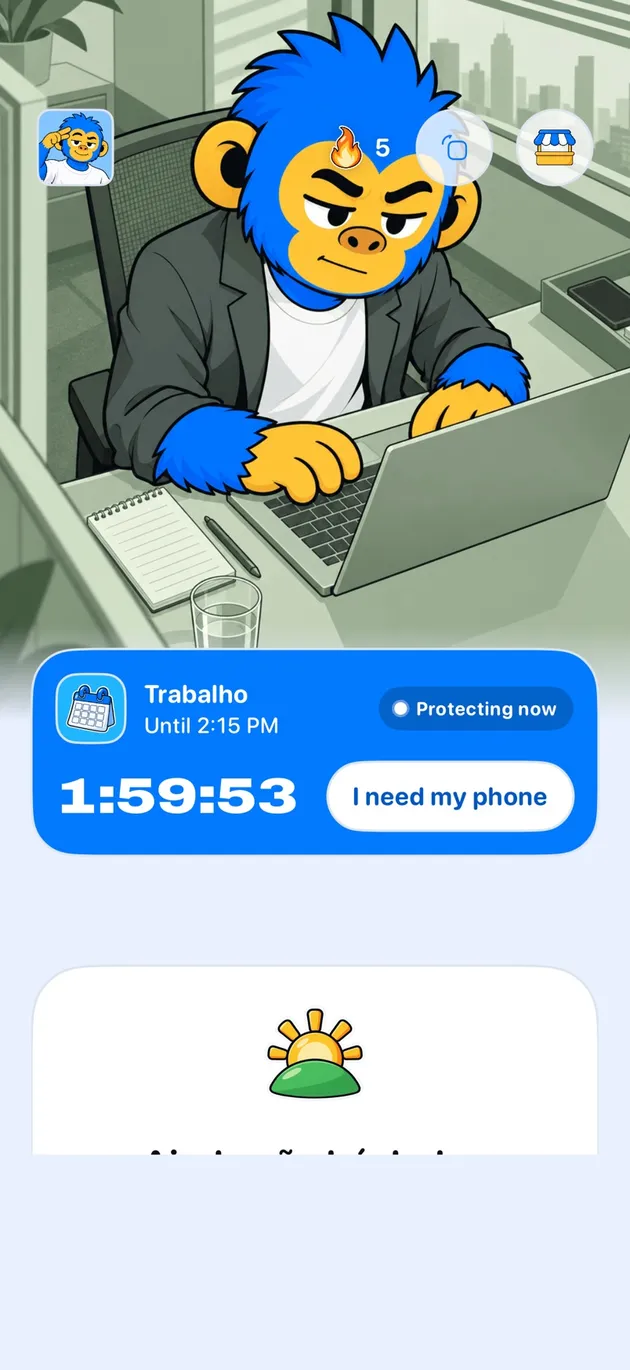
By default, Offimo doesn't block Pinterest outright, since it's often genuinely useful for planning, gathering ideas, or saving things you'll actually use. Instead, it adds a brief pause before the app opens, interrupting the moment where "just checking an idea" turns into an extended scroll through recommended pins. If you want a firmer barrier at certain hours, you can turn on Commitment Mode.
That pause gives you a moment to notice whether you have something specific in mind, like a board you're building or a project you're planning, or whether you're opening Pinterest out of boredom. You can still proceed after the pause; what changes is that scrolling becomes a choice rather than a default.
Offimo's dashboard shows you how many of those opens you skipped over time, making it easier to see how much of your Pinterest use was purposeful versus how much was the algorithm pulling you from one related pin to the next.
Setting Up Pinterest Blocking in Offimo
- 1
Download and Install Offimo
Get Offimo from the App Store and complete the short onboarding flow, granting the permissions it needs to intercept app launches.
- 2
Add Pinterest to Your Protected Apps
In Offimo's app selection screen, choose Pinterest from your list of installed apps. You can protect other apps at the same time if you want.
- 3
Customize Your Pause Settings
Set your preferred pause length (30 seconds is a good place to start) and choose the reflection prompt you'll see before Pinterest opens. Adjust these anytime.
- 4
Use Your Phone as Normal
Keep using Pinterest as you always have. The next time you tap it, Offimo will show the pause first, then let you continue on if you decide you still want to.
- 5
Review Your Progress
Check Offimo's dashboard regularly to see how many opens you paused on and how many turned into an avoided browsing session rather than an intentional visit.
What to Expect After Using Offimo
In the first few days, you'll likely notice how often a quick check for one specific idea turns into browsing through pins that have nothing to do with what you opened the app for. The pause makes that drift visible.
Within a week or two, most users find they still use Pinterest for the planning and idea-gathering they value, while cutting out a large share of the sessions that started with no clear purpose at all.
The time reclaimed tends to be small per session but adds up: fewer stretches of browsing that started as "just five minutes" and ran well past the original session length, and more of that time available for whatever you'd actually planned to do.
Tips for Success
Search instead of browsing the feed.
When you know what you're looking for, search directly rather than scrolling the home feed. It gets you to the idea you need without the related-pins loop pulling you further in.
Name your project before you open the app.
During the pause, name the specific board or project you're working on. If you can't name one, that's a sign you're opening Pinterest out of habit rather than purpose.
Set a pin limit for browsing sessions.
If you're exploring ideas without a specific goal, decide how many pins or minutes you'll allow yourself before you start. It's much easier to stop at a limit you set in advance.
See also
Read more on this topic
Social media Digital detox
 Digital detox